Support
We're here to help. Reach our team directly, send us a message, or find your answer in the questions below.
We typically respond within 1–2 business days.
CognIQ is a tool for healthcare providers. If you're a patient with questions about your records, please contact your healthcare provider.
Send Us a Message
Tell us what's going on and we'll reply by email.
Microphone Not Working?
If the microphone is blocked, here is how to allow it wherever you use CognIQ. Then tap the mic to record again.
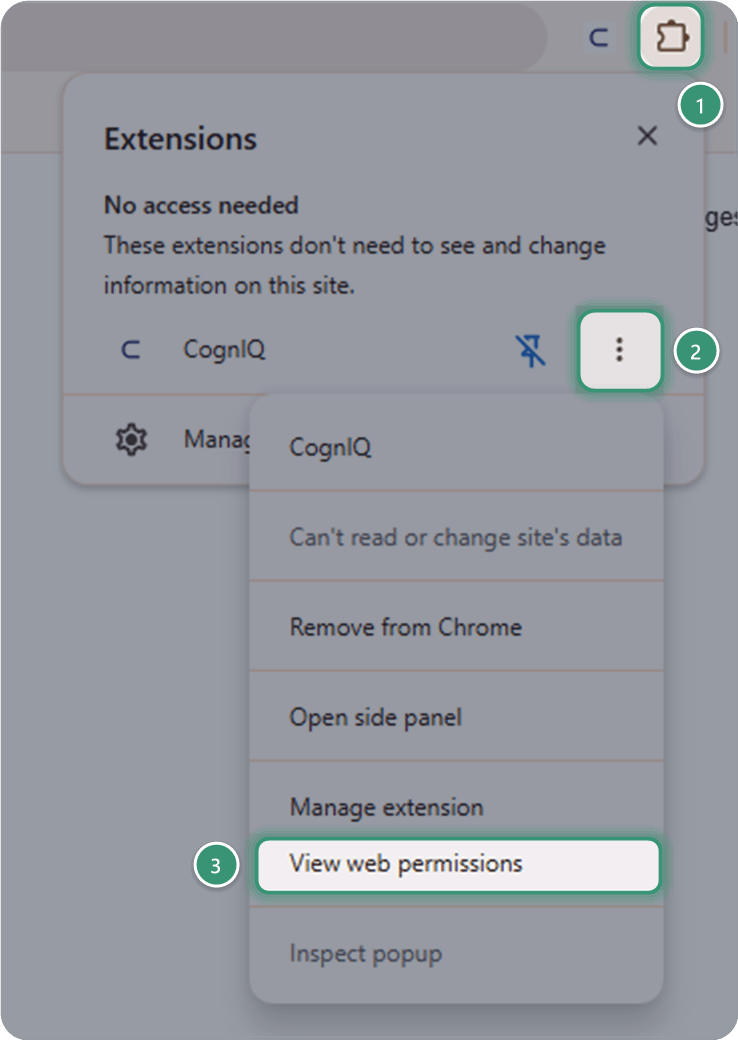
In Chrome, beside your EHR
Click the Extensions (puzzle) icon, then the ⋮ next to CognIQ, and choose View web permissions.
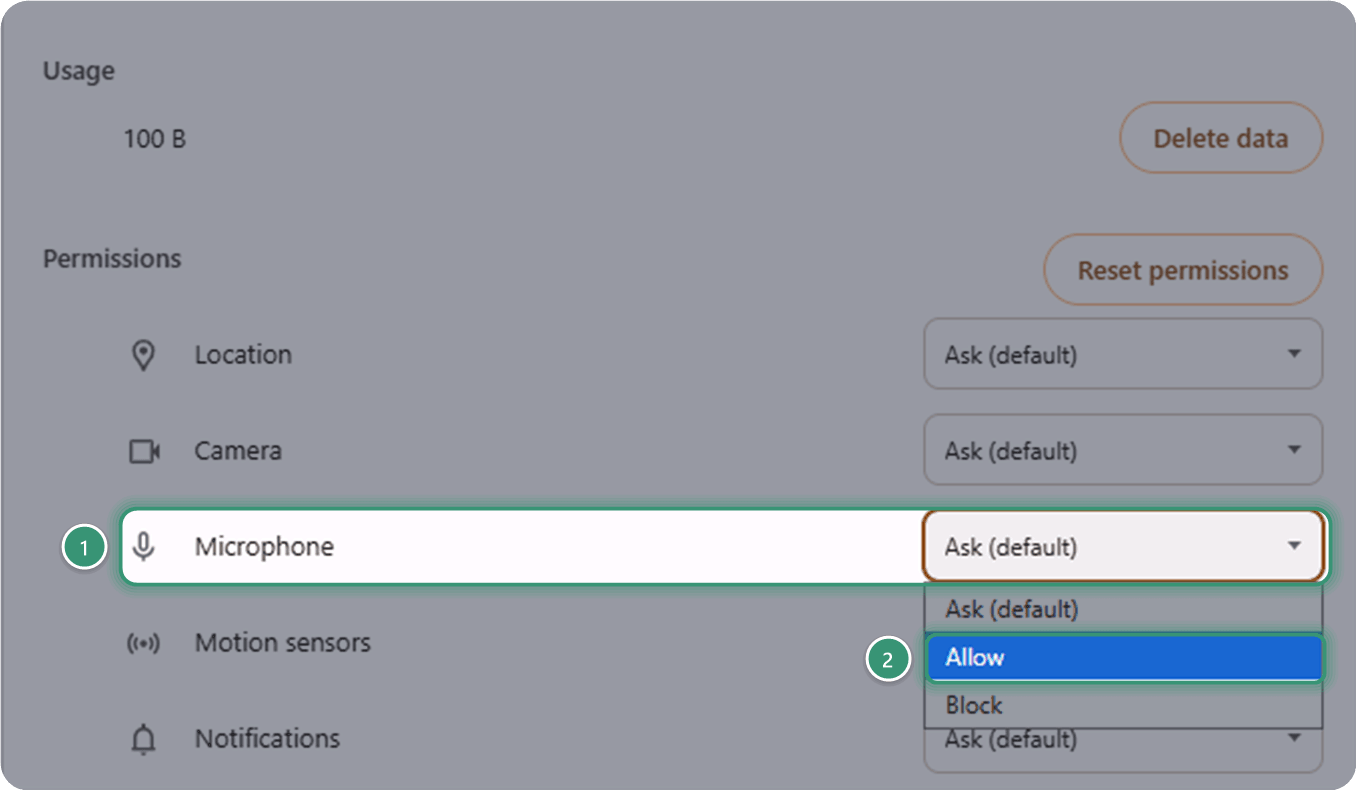
Next to Microphone, choose Allow.
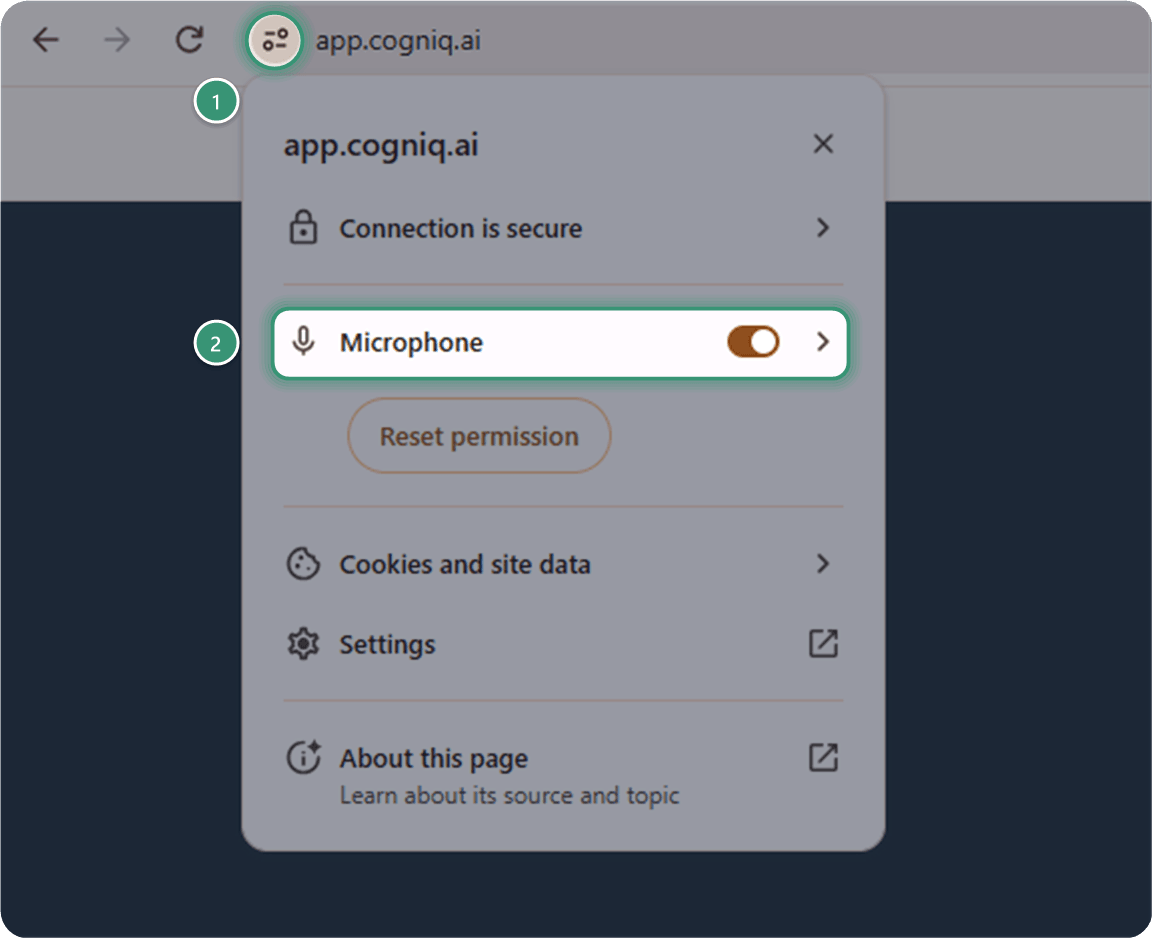
In a browser tab
Click the icon just left of the web address, then turn on Microphone.
As an app on your computer
Click the ⋮ at the top right of the CognIQ window, then choose App info.
Turn on Microphone.
iPhone or iPad
In Safari, tap aA in the address bar, choose Website Settings, and set Microphone to Allow.
Using the home-screen app or another browser? Open the Settings app, go to Safari (or your browser) → Microphone, and allow it.
Close and reopen CognIQ, or reload the page, so the change takes effect.
Frequently Asked Questions
Seeing an error message? The Help Center has step-by-step fixes.